iPhone Duo Workday Test: Can Apple’s Foldable Replace a Phone and Tablet?
A full day of writing showed the iPhone Duo can handle focused work, but app gaps and iOS multitasking limits still make it a laptop companion.

The iPhone Duo can handle a day of focused work, but its larger display doesn’t make it a laptop replacement. After writing a full review on Apple’s first folding phone, I found a useful middle ground: the Duo can take on light tasks that might otherwise go to a tablet, provided the apps cooperate and you bring a keyboard.
Price is part of the appeal. An iPhone 18 Pro costs $1,199, while an iPad starts at $449. Buying both for phone use and occasional work away from a desk comes close to the iPhone Duo’s $1,999 price. That makes the foldable’s pitch easy to understand: one device, with a 7.6-inch screen when opened, might cover some of the ground occupied by two products. The day’s work showed where that idea holds up and where it runs into limits.
Writing works; small tasks slow down
I drafted the review in Bear, whose layout had been adapted for the Duo’s larger screen. That made extended writing more comfortable than I expected. The experience was good enough that I didn’t mind spending most of the day typing on the phone. It also showed how much the result depends on app design: many apps still haven’t been adjusted for the Duo, and some may take weeks or months to catch up.
iOS adds friction when the work involves a mouse. The system doesn’t recognize a Bluetooth mouse or trackpad as a pointer by default. To get an iPad-like cursor for navigating the interface and selecting text, I had to enable AssistiveTouch in Accessibility settings. Once set up, the cursor helped, but routine actions such as adding hyperlinks or quickly searching for background information still took longer than they would on a computer. I put those tasks off until I moved the draft into WIRED’s content management system, then switched to my desktop to finish.
That split between drafting and final editing matters. A larger screen can make focused writing workable, but it doesn’t erase the time spent moving between apps or handling precise editing tasks. People whose work mostly involves composing text may find the setup more comfortable than those who regularly research, link, format, and review material at once.
iOS multitasking shapes the workflow
When two apps are open in split screen, iOS gives each half the display. There’s no way to drag the divider to give one app more room, and portrait orientation doesn’t allow two ordinary apps to sit one above the other. The portrait layout can place video at the top with another app below it, but that’s a narrow exception.
The fixed split can make it awkward to keep a main task open while checking messages or reference material. Apple does let you save two apps as a pair in Recents. For example, email and a calendar can be pinned together and reopened as a set; tapping the bar between them locks and saves the pair. That helps with repeated combinations, though it doesn’t provide a temporary floating window for an app you need to check and dismiss.
A feature like the iPad’s Slide Over would suit this screen well. A messaging app could sit just off the edge until needed, leaving the main workspace intact. That would make quick replies less disruptive without requiring a different app arrangement.
Keyboard, stand, and app support make the difference
I used an older Seenda folding Bluetooth keyboard, which worked but wasn’t especially good. Compact models from brands such as Nillkin and ProtoArc were available, and more compact options may suit this kind of setup. A stand is just as useful: I propped the phone up with Apple’s iPhone Duo Folio with Kickstand. Other MagSafe grips, tripods, and cases with stands can serve the same purpose.
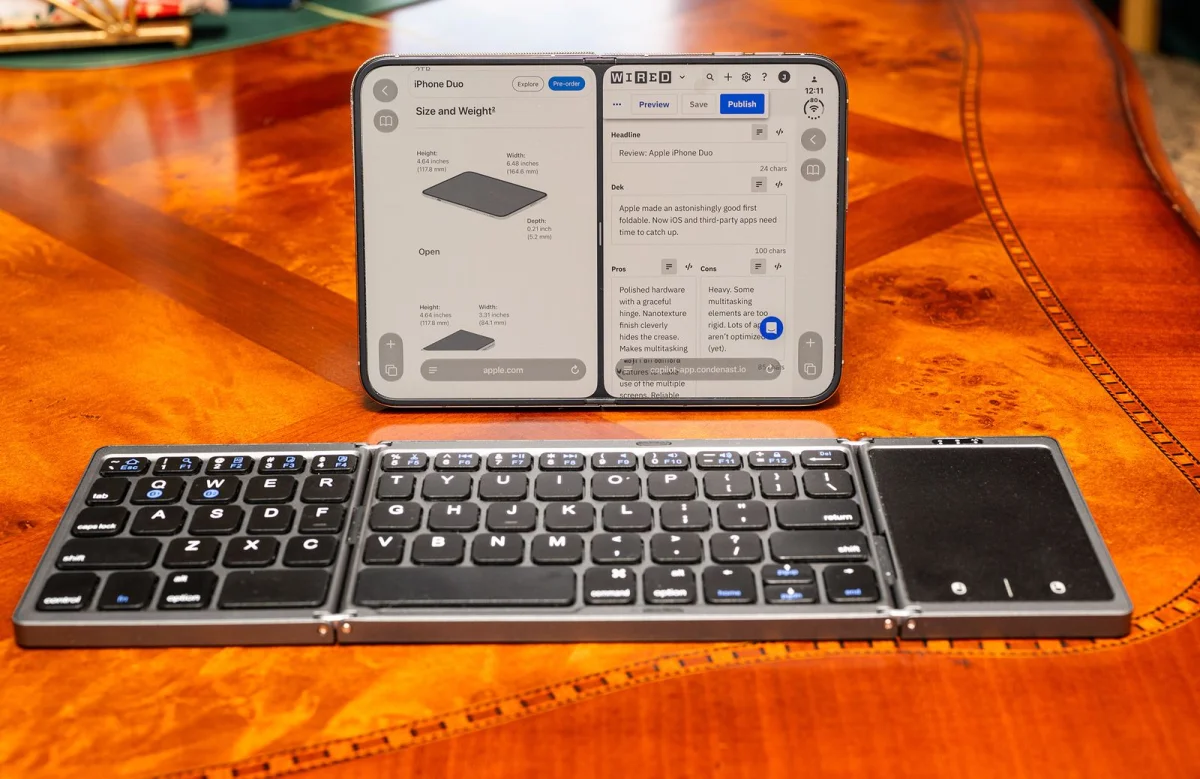
App support made an immediate difference during the day. Slack had updated its iOS app the day before testing, and its two-pane layout made it easy to move among conversations. Zoom hadn’t been adapted for the Duo. The video from both the inner and outer selfie cameras looked good to my editor, but my first arrangement left me appearing in portrait orientation on a 7.6-inch screen. Turning the phone so its 5.4-inch outer display faced me produced a more familiar video-call setup.
Gmail was the most frustrating app. Google Search had been updated for the Duo, while Google’s other workspace apps still looked poor on the larger display during my test. A well-designed two-pane email view could make it much easier to clear messages away from a desk, but that benefit depends on the app being built for the screen.
A capable light-work setup with clear limits
At 6 pm, the battery had about 45 percent remaining after roughly six hours of screen-on time. That was strong enough to keep the phone useful through the workday I tested, though this single result doesn’t establish what to expect under other workloads.
The Duo’s 7.6-inch screen can feel cramped if you’re used to an iPad, and a laptop remains the more capable tool for work that depends on fast research, careful editing, and frequent app switching. Still, with a stand and portable keyboard, the Duo handled a long writing session and routine communication. Planned Apple Pencil support later this year could add another use, though the test says nothing yet about how well that will work.
The practical case for the Duo is therefore specific: it can cover focused, relatively light tasks when carrying a separate tablet or laptop would be inconvenient. Whether that makes sense depends on how often you need that flexibility, how well your essential apps fit the screen, and how much you value a single device. A do-it-all phone may be convenient, but dedicated tools still have a clear place: a camera for photography, a notebook for writing, an MP3 player for music, or a laptop for extended work. Apple’s reported touchscreen MacBook also points to the continuing question: which tasks benefit from combining devices, and which still work better on their own?